Terminal settings
File | Settings | Tools | Terminal for Windows and Linux
GoLand | Settings | Tools | Terminal for macOS
CtrlAlt0S 
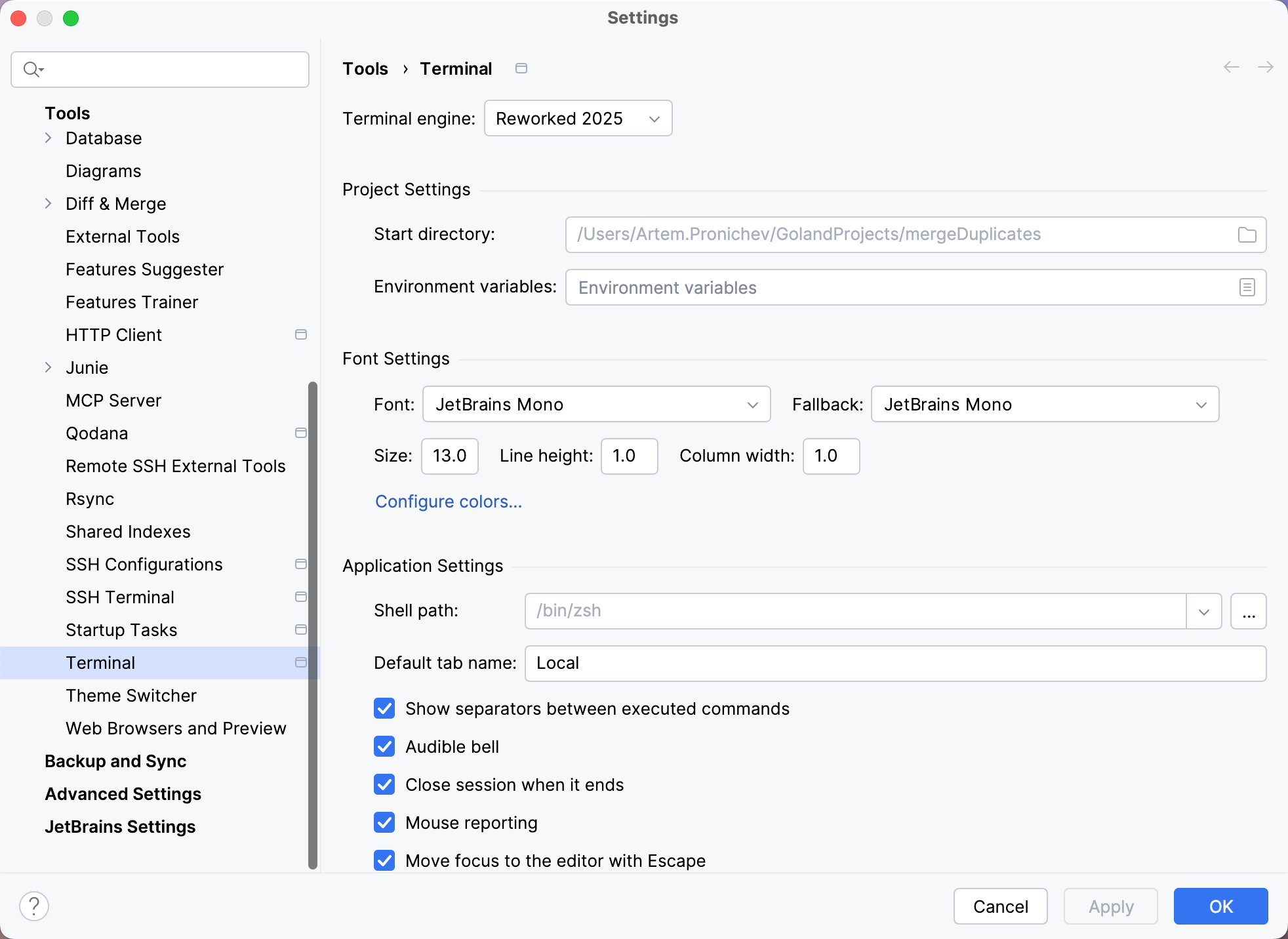
Use this page to customize the settings of the embedded terminal emulator.
note
For the less frequently used settings, refer to Advanced Settings: Terminal.
This functionality relies on the Terminal plugin, which is bundled and enabled in GoLand by default. If the relevant features are not available, make sure that you did not disable the plugin.
Press CtrlAlt0S to open settings and then select Plugins.
Open the Installed tab, find the Terminal plugin, and select the checkbox next to the plugin name.
There are currently two terminal engines in GoLand: Classic and Reworked 2025 (Beta). Refer to the Terminal page for their descriptions.
These settings affect the terminal only for the current project:
- Start directory
Specify the working directory where every new shell session should start. By default, it starts in the root directory of the current project.
- Environment variables
Specify custom environment variables for every new shell session.
- Font
Select the font to be used in the terminal.
- Fallback
Select the fallback font to use when the primary terminal font does not support certain characters.
- Size
Enter the size of the terminal font.
- Line height
Enter the vertical spacing between lines in the terminal.
- Column width
Enter the horizontal spacing between characters in the terminal.
These settings affect the terminal in any project that you open with the current GoLand instance:
- Shell path
Specify the shell that will run by default. GoLand should automatically detect the default shell based on your environment. Here are some examples of different shells:
Bash:
/bin/bashZ shell:
/bin/zshBash for Windows:
bash.exeWSL:
wsl.exePowerShell:
powershellCommand Prompt:
cmd.exeCygwin:
"C:\cygwin\bin\bash.exe" --login -i
- Default tab name
Specify the default name for new tabs.
- Show separators between executed commands
note
This option is available only when the Reworked 2025 terminal engine is enabled.
Show separators between executed commands when running Bash or Zsh.
- Audible bell
Play the bell sound on various events.
- Close session when it ends
Close the current session when the corresponding process ends (for example, by
kill).- Mouse reporting
Enable the mouse pointer support in the embedded local terminal.
- Move focus to the editor with Escape
When this option is selected, you can use Esc to switch focus from the terminal to the editor.
- Copy to clipboard on selection
Copy text selected in the terminal to the clipboard.
- Paste on middle mouse button click
Paste clipboard contents by clicking the middle mouse button.
- Override IDE shortcuts
Use shell-specific shortcuts instead of IDE shortcuts when the Terminal tool window is active.
Click Configure terminal keybindings to open the Keymap settings page and configure the shortcuts that are available in the Terminal tool window under Plugins | Terminal. For example, Switch Focus to Editor is mapped to Esc by default, which means that if you don't override the IDE shortcuts, Escape will switch focus from the terminal to the editor.
- Shell integration
Integrate the terminal with the system shell to properly keep track of your command history for sessions and load a custom config file with required environment variables.
Shell integration works for
sh,bash,zsh, andfishshells.- Highlight hyperlinks
Highlight HTTP links in the terminal and make them clickable.
- Use Option as Meta key
On macOS, use the Option key as the Meta key.
- Cursor shape
Select the shape of the cursor: block, underline, or vertical.
- Run Commands using IDE
note
This option is available only when the Classic terminal engine is enabled.
Instead of running a specific command in the integrated terminal and reading console output, you can use the relevant IDE feature, like a tool window or a dialog that implements this functionality. For example, you can launch a
gradleormvncommand from the Terminal tool window and view its output in the Run or Debug tool window.
The embedded terminal emulator also inherits the following IDE settings:
On the Keymap settings page, you can configure the copy Ctrl0C and paste Ctrl0V shortcuts.
On the Editor | General | Appearance page, you can configure blinking frequency for the caret. The Terminal does not inherit the Use block caret option because there is a separate option for that: Cursor shape.
On the Editor | Color Scheme | Console Font page, you can configure line spacing and fonts.
On the Editor | Color Scheme | Console Colors page, you can configure font colors.
On the Editor | Color Scheme | General page, you can configure the selection foreground and background colors.
Thanks for your feedback!